> ## Documentation Index
> Fetch the complete documentation index at: https://upstash-worktree-docs-descriptions.mintlify.site/llms.txt
> Use this file to discover all available pages before exploring further.
# Prometheus - Upstash QStash Integration
> Scrape Upstash QStash metrics into Prometheus and visualize message throughput, retries, DLQ, and schedules in a Grafana dashboard.
To monitor your QStash metrics in Prometheus and visualize in Grafana, follow these steps:
**Integration Scope**
Upstash Prometheus Integration covers Prod Pack.
## **Step 1: Enable Prometheus in Upstash Console**
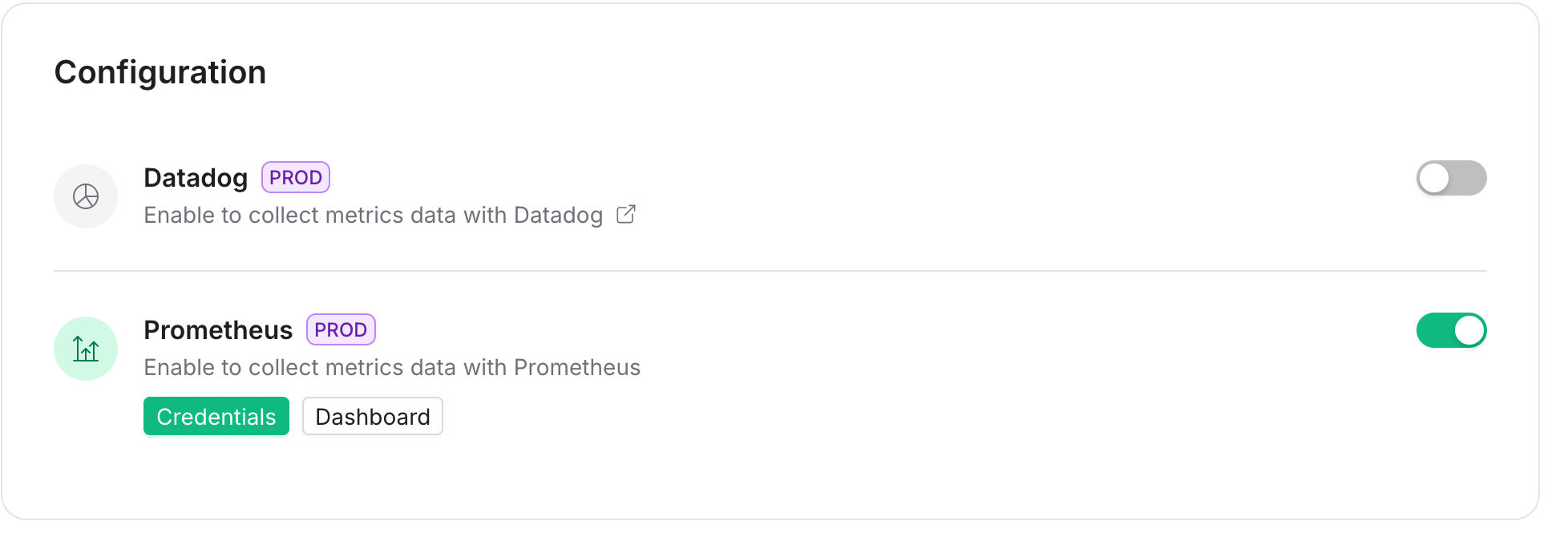
1. Open the Upstash Console and navigate to QStash.
2. Go to Settings → Monitoring.
3. Enable Prometheus to allow scraping QStash metrics.
 ## **Step 2: Copy Monitoring Token**
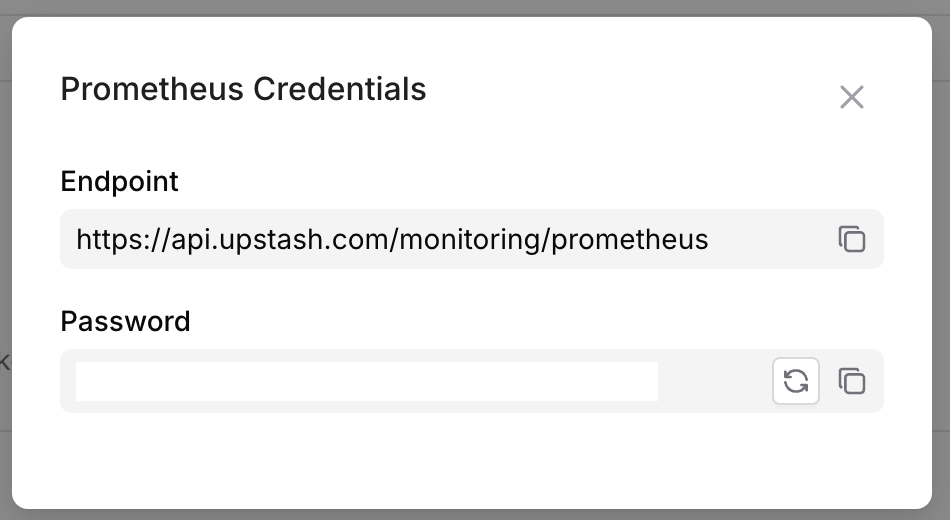
1. After enabling, a monitoring token is generated and displayed.
2. Copy the token. It will be used to authenticate Prometheus requests.
**Header Format**
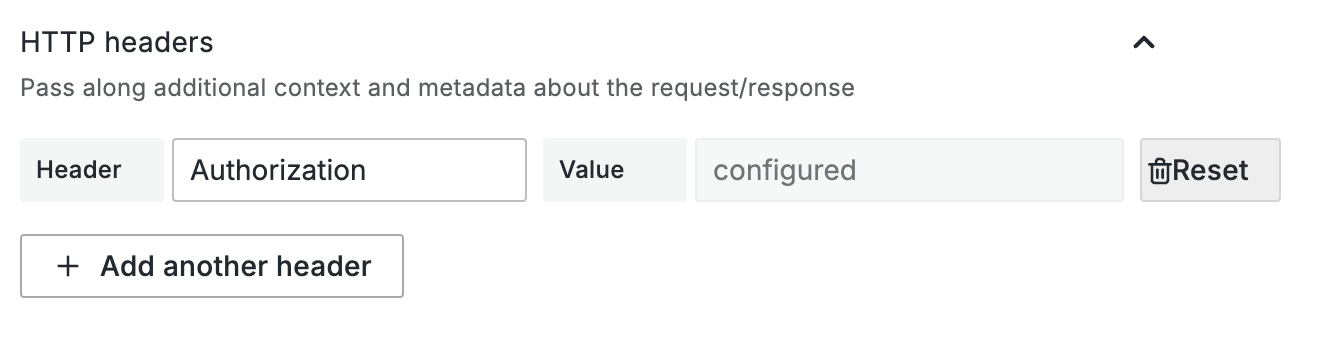
Send the token as `Authorization: Bearer `.
## **Step 2: Copy Monitoring Token**
1. After enabling, a monitoring token is generated and displayed.
2. Copy the token. It will be used to authenticate Prometheus requests.
**Header Format**
Send the token as `Authorization: Bearer `.
 ## **Step 3: Configure Prometheus (via Grafana Data Source)**
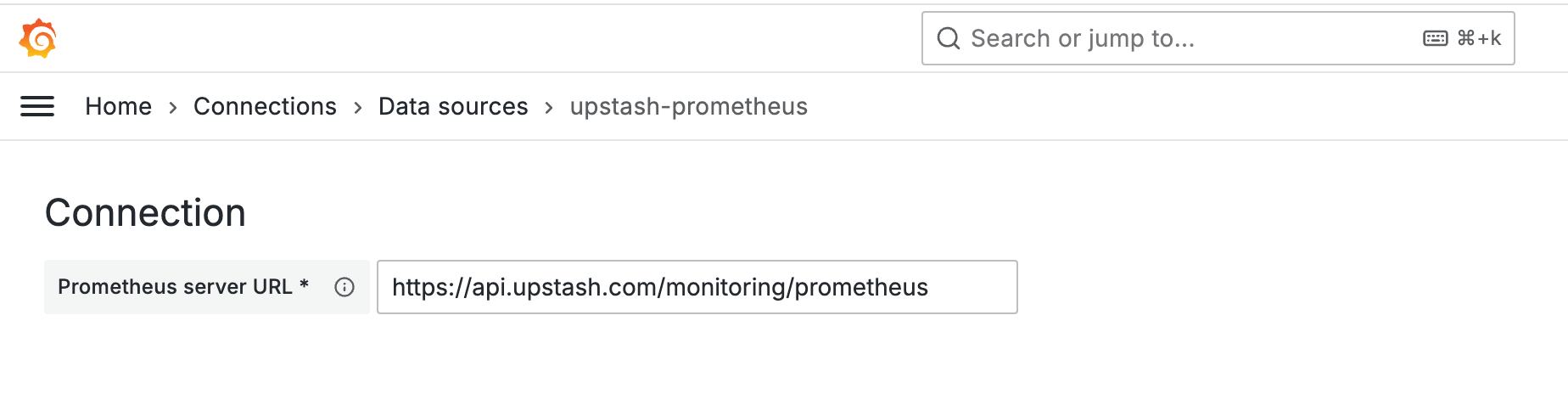
1. In Grafana, add a Prometheus data source.
2. Set the address to `https://api.upstash.com/monitoring/prometheus`.
3. In HTTP headers, add the monitoring token.
## **Step 3: Configure Prometheus (via Grafana Data Source)**
1. In Grafana, add a Prometheus data source.
2. Set the address to `https://api.upstash.com/monitoring/prometheus`.
3. In HTTP headers, add the monitoring token.
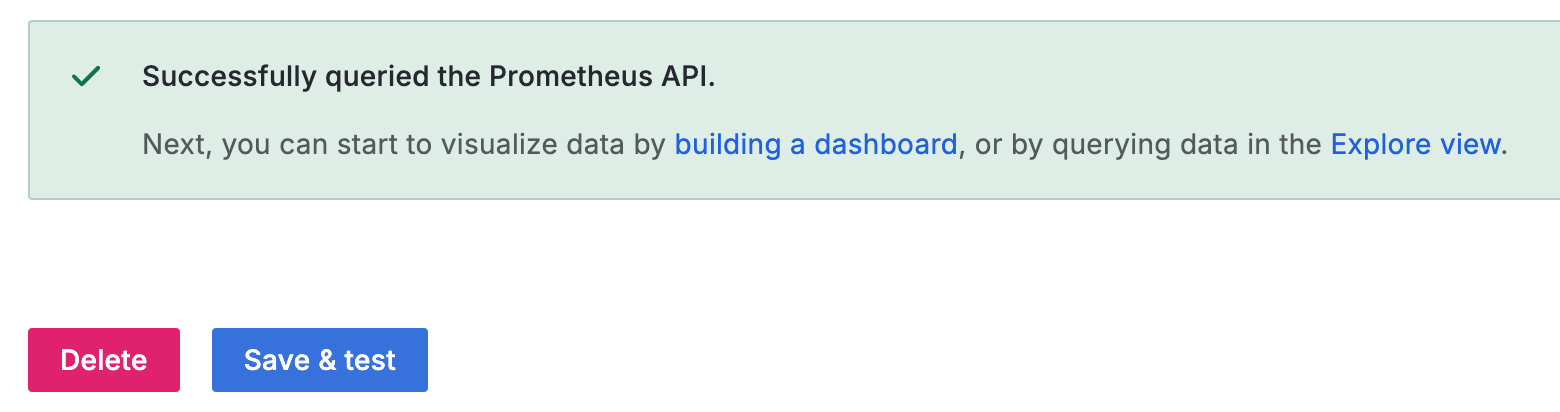
 Click Test and Save.
 ## **Step 4: Import Dashboard**
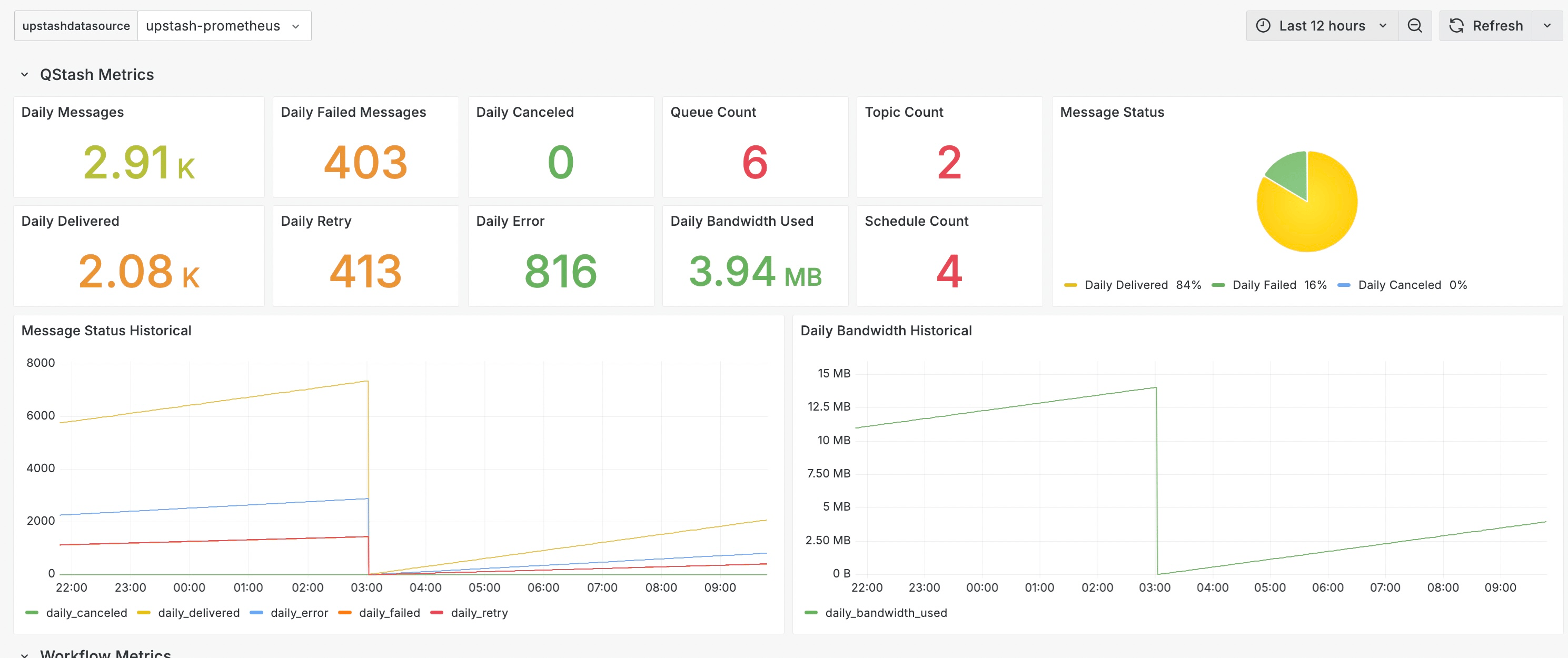
You can use the Upstash Grafana dashboard to visualize QStash metrics.
Open the import dialog and use: Upstash QStash Dashboard
## **Step 4: Import Dashboard**
You can use the Upstash Grafana dashboard to visualize QStash metrics.
Open the import dialog and use: Upstash QStash Dashboard
 ## **Conclusion**
You’ve integrated QStash with Prometheus. Use Grafana to explore message throughput, retries, DLQ, schedules, and Upstash Workflows.
If you encounter issues, contact support.
## **Conclusion**
You’ve integrated QStash with Prometheus. Use Grafana to explore message throughput, retries, DLQ, schedules, and Upstash Workflows.
If you encounter issues, contact support.